
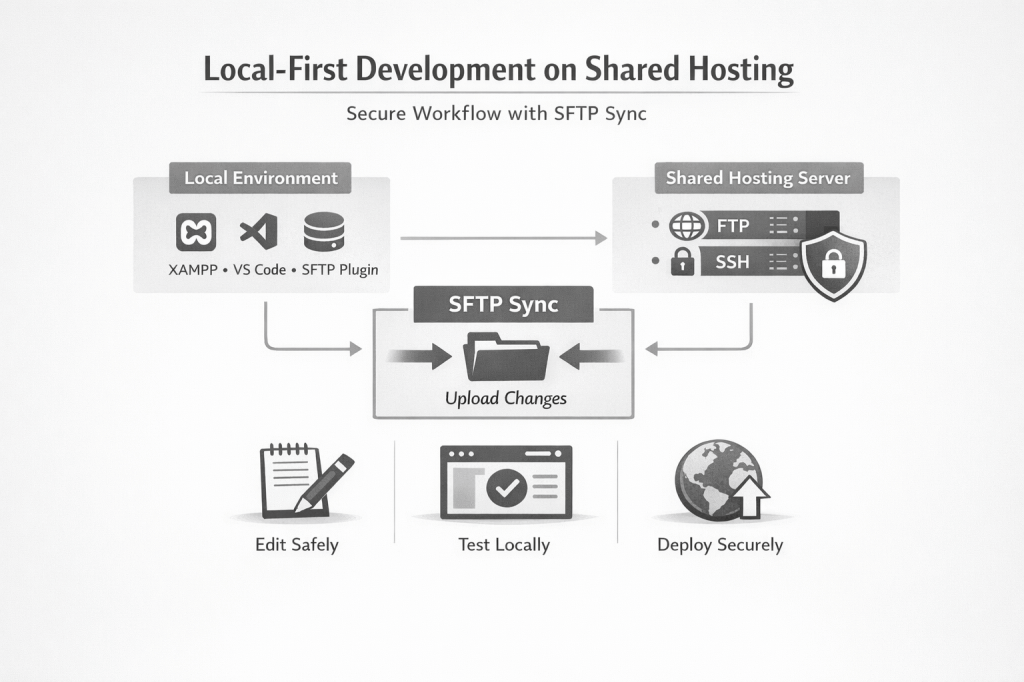
How to develop safely on shared hosting that supports FTP/SSH but blocks direct IDE connections
If you’ve ever worked on a client project hosted on shared hosting—the kind that offers FTP and SSH access but doesn’t allow your IDE to connect directly to the server—you know the frustration. You can’t use remote development features, live sync, or server-side debugging the way you might on a VPS or managed platform. So how do you work safely without editing files directly on production?
The answer is a local-first workflow with SFTP sync. Here’s how to set it up and avoid the pitfalls.
The Problem
Many shared hosting providers give you:
- FTP/SFTP access for file transfer
- SSH access (often on non-standard ports)
- No support for remote development extensions or direct IDE-to-server connections
That means you can’t “open folder on server” or use tools that assume a persistent, low-latency connection. You’re left with:
- Editing directly on the server — Risky, no version control, no local testing
- Manual FTP uploads — Tedious and error-prone
- A proper local workflow — What we’re aiming for
The Solution: Local Development + SFTP Sync
The workflow is simple:
- Clone or download the site to your machine
- Run it locally (e.g., XAMPP, MAMP, Laragon, or Docker)
- Develop and test locally
- Sync changes to the server via an SFTP plugin when you’re ready
Your IDE stays connected to local files. The SFTP plugin handles uploads. You never edit production directly.
Step 1: Get the Site Running Locally
1.1 Get the Files
Download the site via SFTP or use your host’s file manager. You need the full application (e.g., framework files, public_html, config templates—everything except sensitive production configs you’ll recreate locally).
1.2 Set Up a Local Stack
Use XAMPP, MAMP, Laragon, or Docker—whatever you prefer. Point the document root to your project folder.
1.3 Configure Your Hosts File
Add a local domain so you can use something like myproject.local instead of localhost/myproject:
127.0.0.1 myproject.local127.0.0.1 www.myproject.local
On Windows: C:\Windows\System32\drivers\etc\hosts
On macOS/Linux: /etc/hosts
1.4 Adjust Local Config
Update your framework config (e.g., config.php, database.php) for local use:
- Base URL:
http://myproject.local/(or your chosen local domain) - Database: Local MySQL credentials and database name
Important: Add these config files to your SFTP ignore list so you never overwrite production config with local values.
Step 2: Configure the SFTP Plugin
VS Code users can use the SFTP extension (by Natizyskunk). Cursor and other VS Code–based editors support it too.
Create .vscode/sftp.json in your project:
{ "name": "Production Server", "host": "ssh.yourdomain.com", "protocol": "sftp", "port": 18765, "username": "your-username", "privateKeyPath": "C:/path/to/your/private-key", "remotePath": "/home/username/www/yourdomain.com/public_html/", "uploadOnSave": false, "syncMode": "update", "ignore": [ ".vscode", ".git", "node_modules", "**/application/config/config.php", "**/application/config/database.php" ]}
Key Settings Explained
| Setting | Recommendation | Why |
|---|---|---|
uploadOnSave | false | Prevents accidental uploads before you’ve tested locally |
syncMode | "update" | Only uploads changed files; doesn’t delete remote files you might have only on the server |
ignore | Config files, .git, .vscode | Keeps local config and tooling out of production |
Authentication
Use SSH key authentication when possible. Generate a key pair, add the public key in your host’s control panel, and point privateKeyPath to the private key. It’s more secure than passwords and avoids repeated prompts.
Note: Shared hosts often use non-standard SSH ports (e.g., 18765 instead of 22). Check your hosting docs for the correct port.
Step 3: Handle Redirects and Environment-Specific Rules
If your .htaccess (or equivalent) forces HTTPS and redirects to the live domain, it will redirect your local site too. Exclude your local domain from those rules.
Example for Apache:
# Force HTTPS + WWW (skip for local development)RewriteCond %{HTTP_HOST} !^myproject\.local$ [NC]RewriteCond %{HTTP_HOST} !^www\.myproject\.local$ [NC]RewriteCond %{HTTPS} !=on [OR]RewriteCond %{HTTP_HOST} !^www\. [NC]RewriteRule ^(.*)$ https://www.yourdomain.com/$1 [L,R=301]
This keeps production redirects intact while allowing myproject.local to work locally.
Step 4: Watch Out for PHP Version Mismatches
Your local PHP version may differ from the server. If the live site runs PHP 7.4 and you’re on PHP 8.2+, you can hit deprecation warnings (e.g., dynamic properties) that don’t appear in production.
Options:
- Match production — Use the same PHP version locally (e.g., switch XAMPP to PHP 7.4)
- Suppress deprecations in development — In your
index.phpor bootstrap, excludeE_DEPRECATEDandE_USER_DEPRECATEDwhenENVIRONMENTisdevelopment
Matching production is ideal for parity; suppressing deprecations is a practical shortcut if you need to move quickly.
Step 5: Your Day-to-Day Workflow
- Pull or sync — If others work on the project, get the latest files first
- Develop locally — Edit, run, test in the browser at
http://myproject.local - Verify — Check functionality, forms, and key pages
- Upload — Right-click the project (or a folder) in the file explorer → SFTP: Upload (or use the command palette)
- Smoke test on live — Do a quick check on the real site
Because uploadOnSave is off, you control when changes go up. Because config files are ignored, you won’t overwrite production settings.
Tips and Best Practices
- Use version control — Even if the client doesn’t use Git, keep a local repo. It gives you history and rollback options.
- Document your setup — Note the SFTP port, config differences, and any host-specific quirks. Future-you (or another dev) will thank you.
- Test before uploading — A quick click-through locally can save you from breaking production.
- Back up before big changes — Use your host’s backup tool or download a copy before major updates.
- Consider a staging subdomain — If the host allows it, use a staging URL for final checks before going to the main domain.
When This Approach Makes Sense
This workflow fits:
- Shared hosting with FTP/SSH but no direct IDE support
- PHP apps (WordPress, CodeIgniter, Laravel, custom)
- Small teams or solo developers
- Projects where a full CI/CD pipeline isn’t in place
It’s not a replacement for proper staging environments or deployment pipelines, but it’s a solid, practical approach when those aren’t available.
Wrapping Up
You don’t need direct IDE-to-server access to work safely. A local stack, a hosts entry, careful config management, and an SFTP plugin give you a clean, repeatable workflow. Develop locally, test locally, upload when ready—and keep production configs out of the sync.
If you’ve set up a similar workflow or hit different obstacles, sharing your experience can help others in the same situation.
 Ayush Raj
Leave a comment