
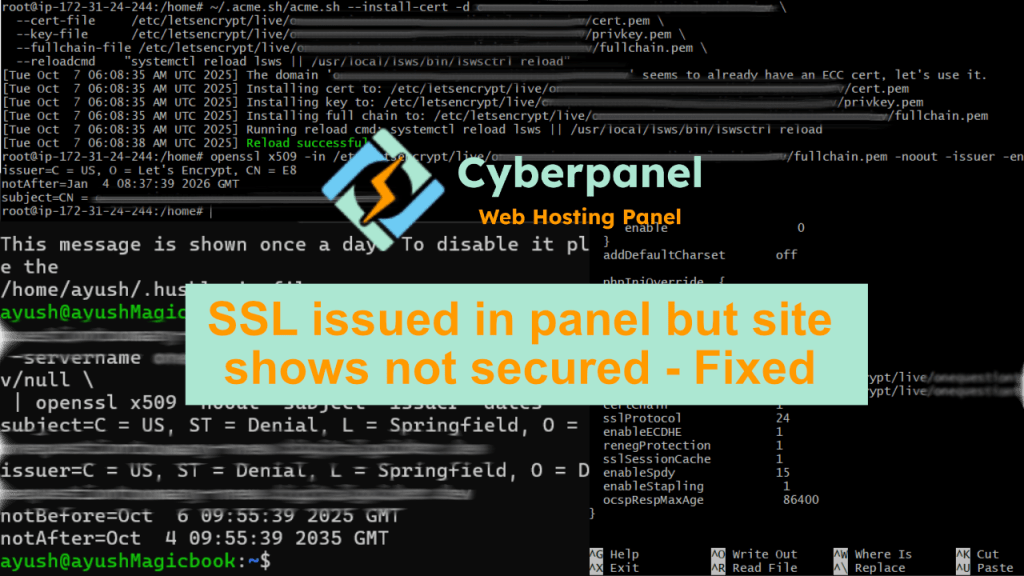
When running a web server on CyberPanel (which uses acme.sh under the hood), SSL certificates are usually issued automatically. But one morning, I found my SSL renewals timing out — the logs showed connections to acme.zerossl.com. Eventually, they started throwing 429 rate-limit errors from Let’s Encrypt after I switched CAs.
Here’s everything I did to fix it — step by step.
The Problem
CyberPanel by default uses acme.sh to manage SSL certificates. For a long time, it pointed to ZeroSSL as the default certificate authority (CA).
After a few successful renewals, my logs started showing this:
[Tue Oct 7 05:58:59 AM UTC 2025] code='429'
[Tue Oct 7 05:58:59 AM UTC 2025] "too many certificates (5) already issued for this exact set of identifiers..."
I was hitting the Let’s Encrypt rate limit (5 certs per week per domain set). Before that, ZeroSSL itself was timing out.
I realized that:
acme.sh was still defaulting to ZeroSSL.
I needed to switch my CA back to Let’s Encrypt permanently.
I didn’t actually need a new certificate — the last one was still valid.
Step 1: Check Which CA You’re Using
Run this command:
~/.acme.sh/acme.sh --show-ca
If it outputs something like:
CA: https://acme.zerossl.com/v2/DV90
then you’re still using ZeroSSL.
Step 2: Set Let’s Encrypt as Default CA
To switch temporarily for just one certificate:
/root/.acme.sh/acme.sh --issue -d example.com --standalone --server letsencrypt
If the cert already exists under ZeroSSL and you just want to re-issue it via Let’s Encrypt:
/root/.acme.sh/acme.sh --renew -d example.com --force --server letsencrypt
To switch permanently:
/root/.acme.sh/acme.sh --set-default-ca --server letsencrypt
If you haven’t registered your Let’s Encrypt account yet:
/root/.acme.sh/acme.sh --register-account -m you@example.com --server letsencrypt
This tells acme.sh to use Let’s Encrypt for all new issues/renewals.
Step 3: Check Existing Certificates
To see details for any domain:
~/.acme.sh/acme.sh --info -d yourdomain.com
Example output (simplified):
Le_API=https://acme-v02.api.letsencrypt.org/directory
Le_CertCreateTimeStr=2025-10-06T09:36:11Z
Le_NextRenewTimeStr=2025-12-04T09:36:11Z
Le_RealCertPath=/etc/letsencrypt/live/yourdomain.com/cert.pem
If it shows Let’s Encrypt under Le_API, you’re already good.
Step 4: Install the Existing Certificate
If the certificate already exists and you just need to deploy it (without re-issuing and hitting rate limits):
~/.acme.sh/acme.sh --install-cert -d yourdomain.com \
  --cert-file      /etc/letsencrypt/live/yourdomain.com/cert.pem \
  --key-file       /etc/letsencrypt/live/yourdomain.com/privkey.pem \
  --fullchain-file /etc/letsencrypt/live/yourdomain.com/fullchain.pem \
  --reloadcmd     "systemctl reload lsws || /usr/local/lsws/bin/lswsctrl reload"
After that, you should see:
Reload successful
Step 5: Verify the Installed Certificate
Check if your certificate was issued by Let’s Encrypt:
openssl x509 -in /etc/letsencrypt/live/yourdomain.com/fullchain.pem -noout -issuer -enddate -subject
Expected output:
issuer= C = US, O = Let's Encrypt, CN = E8
notAfter=Jan  4 08:37:39 2026 GMT
subject=CN = yourdomain.com
Step 6: Fix the Renewal and Reload Automation
Ensure acme.sh knows how to reload your web server when certificates renew:
grep Le_ReloadCmd ~/.acme.sh/yourdomain.com_ecc/yourdomain.com.conf
If it’s blank, set it again:
~/.acme.sh/acme.sh --install-cert -d yourdomain.com \
  --cert-file      /etc/letsencrypt/live/yourdomain.com/cert.pem \
  --key-file       /etc/letsencrypt/live/yourdomain.com/privkey.pem \
  --fullchain-file /etc/letsencrypt/live/yourdomain.com/fullchain.pem \
  --reloadcmd "systemctl reload lsws || /usr/local/lsws/bin/lswsctrl reload"
Confirm a cron job exists for automatic renewals:
crontab -l | grep acme.sh
If not, add one:
~/.acme.sh/acme.sh --install-cronjob
Step 7: (Optional) Fix the CyberPanel Hostname SSL
The CyberPanel admin panel’s SSL is separate from your websites.
Go to:
CyberPanel → SSL → Hostname SSL → Issue SSL
Now that the default CA is Let’s Encrypt, it will use it automatically.
Step 8: Testing and Confirmation
Test your site:
curl -I https://yourdomain.com
And confirm the certificate chain from anywhere:
openssl s_client -connect yourdomain.com:443 -servername yourdomain.com </dev/null | openssl x509 -noout -issuer -enddate
If you see “Let’s Encrypt” and a valid expiry date — you’re done.
Final Notes
Don’t use --force unless you need to re-issue. Each forced run counts toward your 5-per-week limit.
acme.sh keeps logs under /root/.acme.sh/acme.sh.log — check here if something goes wrong.
CyberPanel users can safely use CLI commands for troubleshooting — the panel will pick up changes automatically.
TL;DR — Quick Recovery Cheatsheet
| Step | Command | Purpose |
| Check CA | ~/.acme.sh/acme.sh –show-ca | See if it’s ZeroSSL or LE |
| Switch CA | –set-default-ca –server letsencrypt | Make LE default |
| Check cert | –info -d domain.com | See issuance details |
| Install cert | –install-cert … | Deploy without reissuing |
| Verify cert | openssl x509 -in … -issuer -enddate | Check LE issuer |
| Cron renew | –install-cronjob | Ensure auto renewals |
| Reload web | systemctl reload lsws | Apply the new cert |
Lessons Learned
- CyberPanel doesn’t automatically switch to Let’s Encrypt after acme.sh updates — you must set it yourself.
- Forcing re-issues too many times quickly hits Let’s Encrypt’s rate limits.
- The existing valid certificate can simply be installed and reloaded — no need to re-request it.
 Ayush Raj
Leave a comment